The automation board: rules on pipeline stages
Automations live on the stages of your pipeline, laid out like a kanban board. Learn to place, duplicate, pause, and audit them through the runs log.
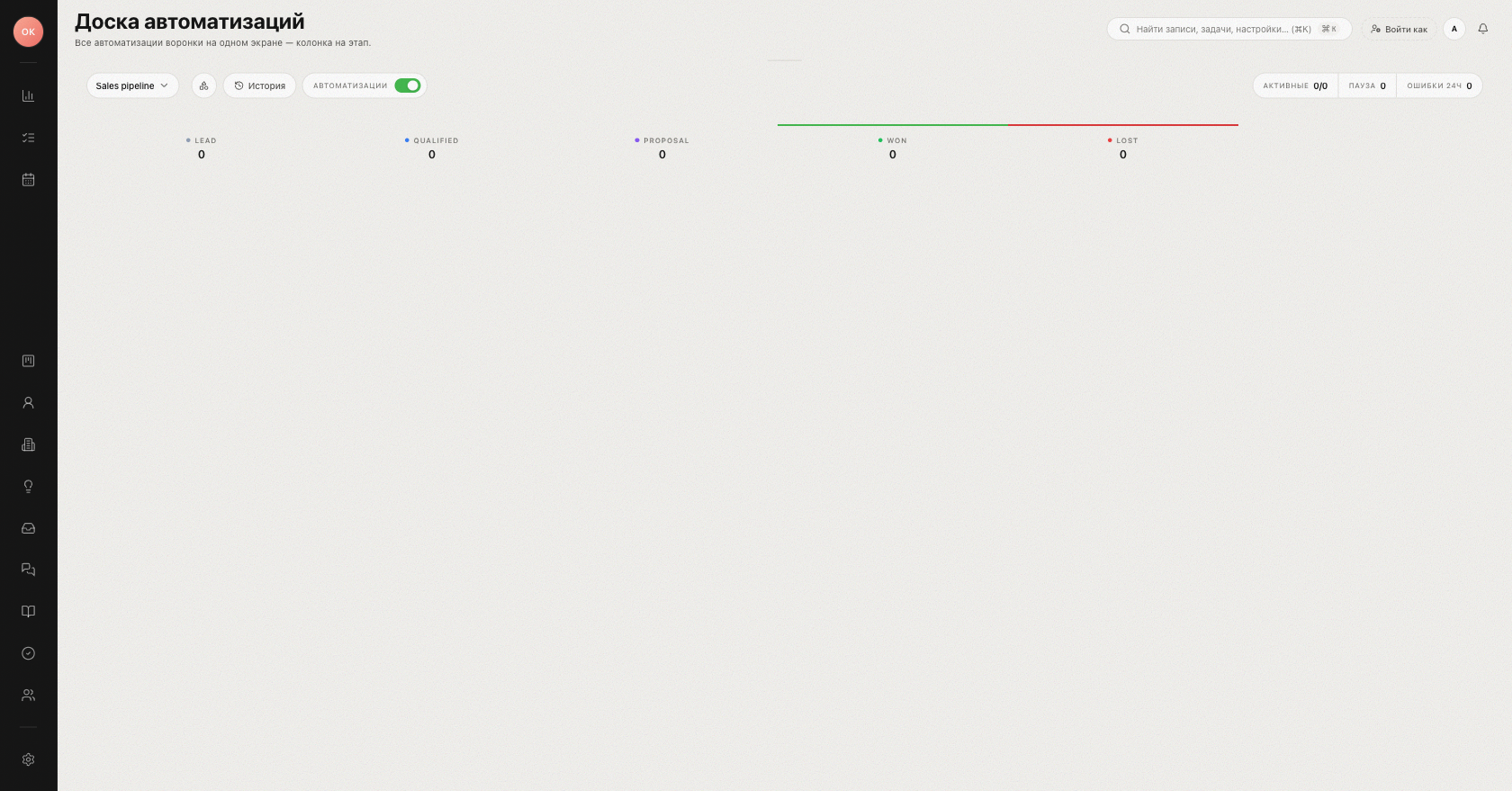
Open Automations to see the "Automation Board" — "Every automation on this pipeline at a glance — one column per stage." Instead of a separate rule list, each automation sits in the column of the stage it belongs to, so you always see where in the funnel a rule fires.
Reading the board
- Pipeline selector — switch between pipelines with the "Pipeline" dropdown; each pipeline has its own board.
- Columns = stages — the same columns as your deal kanban.
- "Any stage" lane — holds "triggers that fire regardless of which stage a deal is in" (for example a schedule or an incoming webhook).
- Chips — each automation is a compact card showing its trigger (for example "Enters this stage"), the action (for example "Send email"), a delay badge when the action waits, and how often it fired recently.
- Stats strip — "Active", "Paused", "24h", "7d", and "Errors 24h" counters summarize the pipeline's automation health.
- Search and filter — "Search automations…" plus a filter by action category ("Send", "Mutate", "AI assistant", "Webhook", "Flow") and a "Show only disabled" toggle.
Placing and moving automations
- Click "Add automation" on a stage. The chooser asks "How does this automation start?" — pick a trigger, then a condition (optional) and one action.
- Drag chips between stages and rows — "Drag to reorder". A stage-scoped trigger like "Enters this stage" follows the chip to its new column.
- Duplicate — every chip has a "Duplicate" button. Pressing it switches the board to click-to-place mode ("Click where to insert the copy · Esc to cancel"): click a cell on any stage and the copy is created there — the "Automation duplicated" toast confirms the placement. This is the fastest way to roll the same rule across the funnel.
Pausing at three levels
| Level | Control | Effect |
|---|---|---|
| One automation | Toggle on the chip ("On — click to pause") | Only this rule stops firing. |
| One stage | Pause button in the column header | "Stage paused — chains will not fire" for every rule on that stage. |
| Whole workspace | The "Automations" kill switch | Emergency stop: nothing fires anywhere until you resume. Useful before a bulk import. |
The runs log
The "Automation history" page shows execution history: "Each row is one time an automation ran for a deal." Columns: "Status", "Automation", "Trigger", "Deal", "When", "How long" — over the last 7 days by default. Statuses are "Pending", "Running", "Paused", "Succeeded", "Failed", and "Cancelled". Filter by status, by trigger, and check the leaderboard "Which automations ran most often".
Click a row to open the run inspector: the trigger event, run metadata (ID, source, start, finish, duration), and the executed step with its input, output, and any error. Simulated runs carry a "Simulation" badge: "Test run — nothing was actually sent or changed." A user whose role can edit automations can also cancel an in-flight delayed run with "Cancel run".
Tip: "Cancelled" is usually not an error — most often the deal left the stage before a delayed action fired, so the action was no longer needed. Personalize your actions with variables.
Was this article helpful?