Interface language
Ikigai speaks three languages — English, Russian, and Ukrainian. Here is how to switch yours and what exactly changes.
Every person in a workspace picks their own interface language. Your choice does not affect your colleagues: two managers in the same workspace can comfortably work in two different languages on the same data.
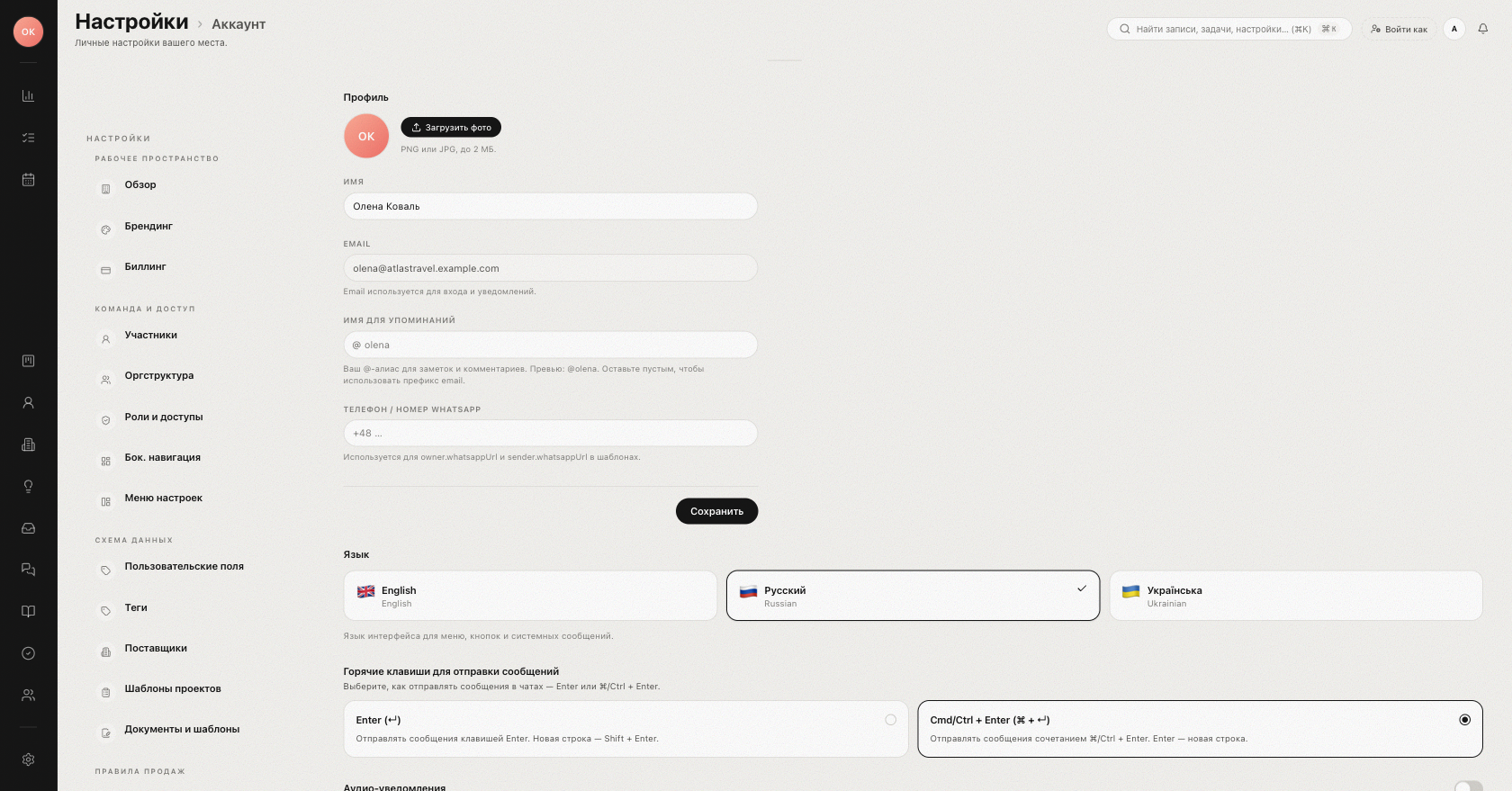
The three languages
| Language | Shown on the card as |
|---|---|
| English | English |
| Russian | Русский |
| Ukrainian | Українська |
How to switch
- Open "Settings" in the sidebar and pick "Account".
- Scroll to the "Language" section — three cards, one per language, with the current one marked by a check.
- Click the card you want.
The change is saved instantly to your profile — there is no separate save button. The interface re-renders in the new language right away, and the hint under the picker states the scope: it "sets the interface language for menus, buttons, and system messages."
What the setting changes
- All UI chrome: navigation labels, buttons, dialogs, form fields, hints, and error messages.
- System-generated texts such as the titles of new notifications in the bell panel (notifications you already received keep the language they arrived in).
- These Help Center articles — each one is written in all three languages.
- Dates and relative timestamps in the interface follow the interface language.
What it does not change
- Your data. Deal names, notes, email bodies, and chat messages stay exactly as they were typed — Ikigai never translates content.
- Other people's screens. The language is personal, stored on your user profile, and follows you across devices and browsers after you sign in.
- Client-facing messages. What you write to clients is up to you; templates keep the language they were authored in.
How the language is chosen before you pick one
Until you make an explicit choice, Ikigai resolves the language in this order: your saved profile setting, then the browser cookie from a previous visit, then your browser's preferred-language header, and finally English as the default. So on a brand-new account the interface usually already matches your browser — the picker is there for when it guesses wrong.
While you are on the Account page, check the rest of your personal setup in Profile settings.
Was this article helpful?