Profile settings: name, photo, and password
Set up how colleagues see you — display name, photo, mention handle, phone — and learn how password changes work.
Your personal settings live in one place: open "Settings" in the sidebar and pick "Account". The same page opens from the user menu (your avatar at the top of the sidebar) via the "Account" item. The first block on the page is "Profile" — how you appear to colleagues across the CRM.
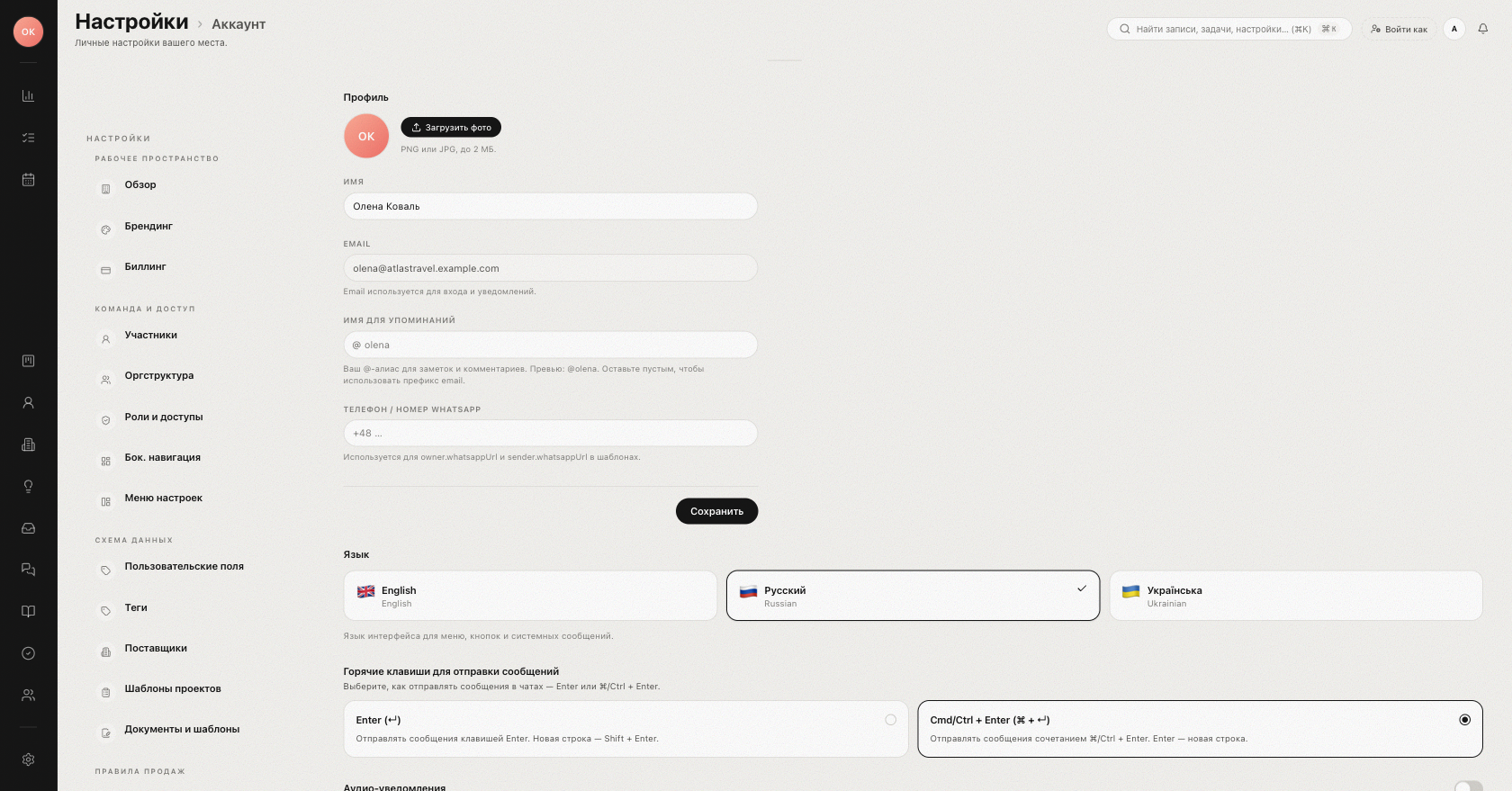
Photo
Your photo shows up in people pickers, comments, and next to records you own.
- Click "Upload photo" (or "Replace photo" if one is already set).
- Pick an image — as the hint says, PNG or JPG up to 2 MB (WebP and GIF also work).
- To go back to initials, click "Remove".
The upload applies immediately, no separate save needed.
Profile fields
| Field | Notes |
|---|---|
| "Display name" | The name colleagues see everywhere — pickers, comments, activity. |
| "Email" | Read-only. It is your sign-in identity and where service emails (such as invitations) arrive; changing it requires an administrator. |
| "Mention handle" | Your @-alias for notes and comments, 3–32 characters, lowercase letters, digits, and . _ - . Leave blank to use your email prefix. |
| "Phone / WhatsApp number" | Optional. Used when templates insert your WhatsApp link so clients can reach you directly. |
Click "Save" at the bottom of the block — a short "Saved" confirmation appears next to the button. If your mention handle is already taken or reserved, the form tells you right under the field.
Password
There is no password field on the Account page — passwords are managed by administrators:
- You set your password once when accepting the workspace invitation.
- If you forget it, ask an administrator: they set a new password for you in the member settings (passwords must be at least 12 characters).
- The login page says the same: "Forgot? Ask your admin to reset."
What else is on this page
Below the profile block the Account page also contains:
- "Language" — the interface language switch, covered in Interface language.
- Messaging preferences — how your outgoing chat messages are sent, plus "Audio notifications" for incoming chat messages.
- Your personal booking link for scheduling.
- Email signatures — one per connected mailbox. If you have no mailbox connected yet, the section shows a hint linking to integrations instead.
Notification preferences live on a separate page — see Notification settings.
Was this article helpful?