How to find a deal, contact, or anything else
Three ways to reach any record in seconds: the search field in the top bar, the command palette on Cmd+K, and filters on list pages.
Ikigai has three complementary ways to find things. Pick by situation: the command palette when you know roughly what you want, the full search page when you are investigating, and list filters when you need a slice of records rather than one record.
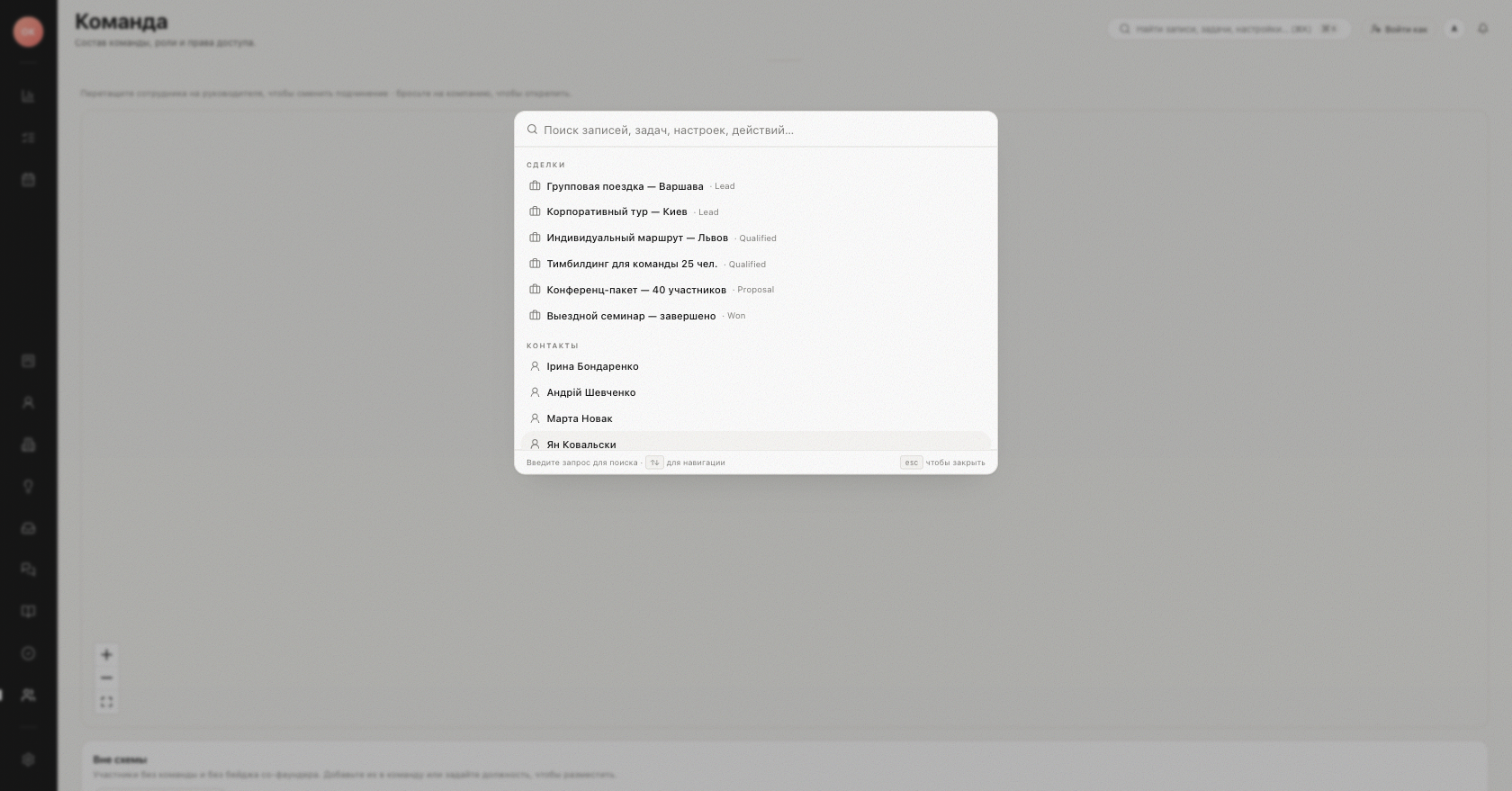
The fastest way: top bar search and Cmd+K
Click the "Search records, tasks, settings… (⌘K)" field in the top bar, or press ⌘K (Ctrl+K on Windows) anywhere. The command palette opens and searches as you type across Deals, Contacts, Companies, Tasks, Notes, Knowledge base, Mail, Projects, and Chats.
The palette is more than search:
- "Quick actions" — create a deal, contact, or task, or compose an email without leaving the page.
- "Navigate" — jump to any section ("Go to Pipeline", "Go to Contacts", and so on).
- When you open the palette while a record's page is already open, it offers actions on that record — for a deal, for example, marking it as won or assigning it to yourself. Picking a search result simply opens that record.
Navigate results with the arrow keys, open with Enter, close with Esc.
When you need everything: the search page
If the palette's shortlist is not enough, choose "See all results for…" — the item quotes your current query (or open the Search page from navigation). Full search covers deals, contacts, companies, notes, tasks, activity, the knowledge base, emails, and channel conversations — all in one place. It understands names, domains, free text, and phone numbers in any format, so paste whatever you have. Recent queries are kept under "Recent searches", and searching an email or phone that belongs to one person shows a compact contact card with their deals and last activity.
When you need a slice: list filters
On the pipeline, press "Filters" to open the "Search and filters" drawer: stages, "Date created" / "Date updated", source, managers, budget, tags, custom fields, and "Outcome" (open / won / lost). A useful combination can be stored with "Save as view" and reused with one click. The contacts and companies tables have their own search field and column filters, and the Messages list has a search box plus a per-channel filter.
Tip: train the ⌘K reflex. For "open the card of the client who just called", palette + a few digits of the phone number beats any amount of clicking.
Prefer the keyboard for everything? See Keyboard shortcuts and the rest of How to.
Was this article helpful?