The deal card
The deal page in detail: the tabs with communications and history, the sidebar sections, and tasks on the deal.
Click any card on the board to open the deal page. Everything about one sales opportunity lives here: the conversation, the fields, the tasks, and the stage controls.
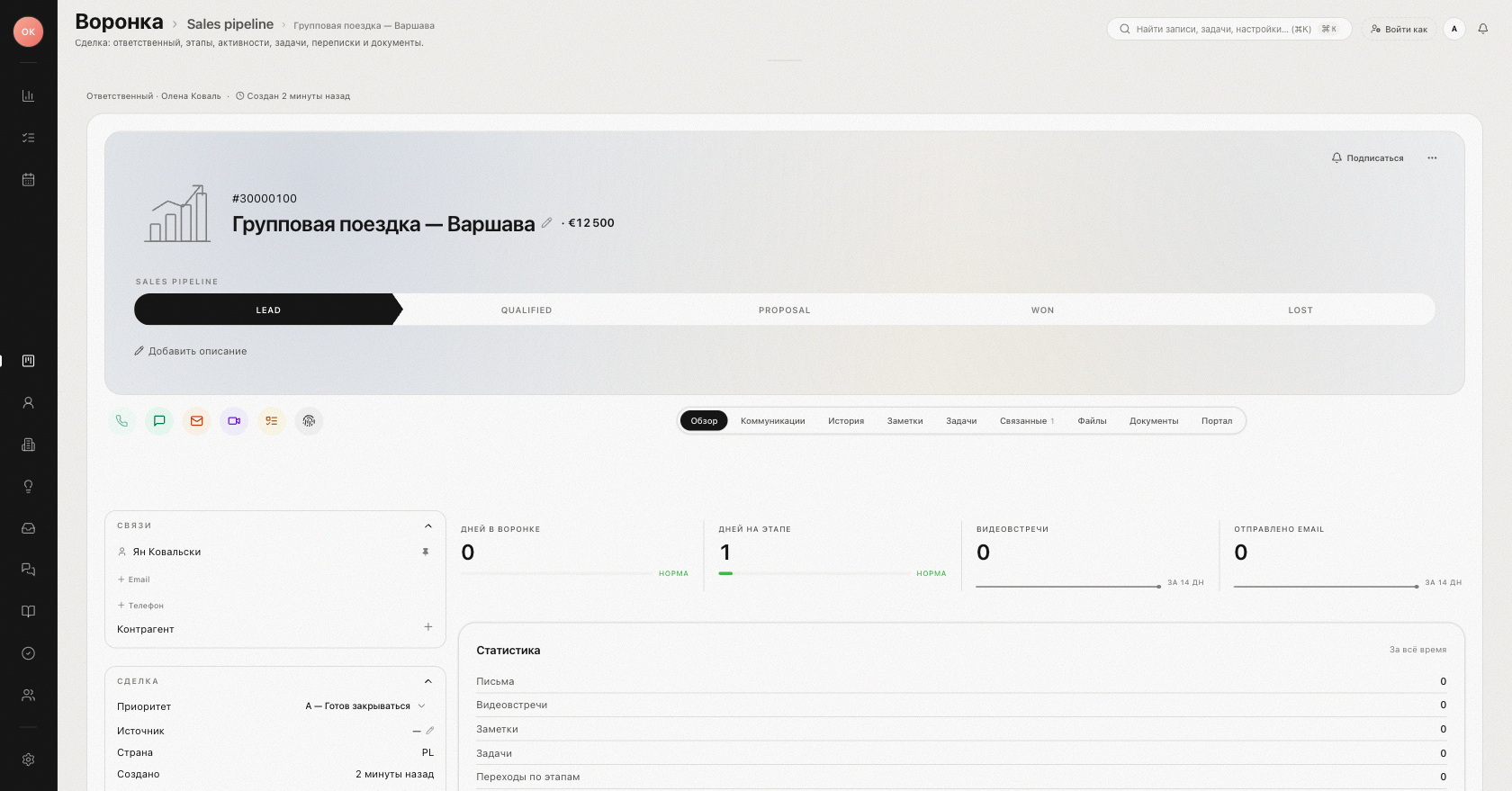
Header and stage
At the top you see the deal name and the path tracker — the stages of the pipeline rendered as steps. Change the stage right here with the stage selector ("Select stage"); while the deal is saving you'll see "Moving to “{stage}”". Reaching a Closed-won or Closed-lost stage closes the deal — see Pipelines and stages.
Alert chips in the header flag deals that need attention: OVERDUE · Nd (the planned touch is in the past), NEXT TOUCH · in Nd, STUCK IN STAGE · Nd, and NO TOUCH · Nd.
The tabs
The main column of the deal page is split into tabs: Overview, Communications, History, Notes, Tasks, Related, Files, Documents, and Portal.
- Overview — the deal's custom fields, as configured for the workspace.
- Communications — a unified feed of emails, chat messages, meetings, and calls. Emails are threaded, with per-message status (Queued, Sending, Sent, Failed); remote images are blocked by default ("Images blocked for your privacy" — press Show images). Conversations from connected channels land in the same feed as email.
- History — stage changes, owner changes, file uploads and other system events.
- Notes — write a note in the composer ("What happened? Update the team or yourself…"), attach files by dragging them in, and press Save note. Notes are "Visible to your workspace."
- Tasks, Related, Files, Documents, Portal — tasks on the deal, linked records, uploaded files, generated documents, and the client portal.
A Conversation summary block condenses long correspondence: the title, when it was updated, the summary text, and a "Based on N messages" note.
The sidebar
The right rail holds the structured data:
| Section | Contents |
|---|---|
| Relations | The linked contact and company. |
| Deal | Amount, Close date, Owner, Priority, Source, Country, Created, Updated. |
| Upcoming meetings | Scheduled meetings on the deal. |
| Documents | Documents attached to the deal. |
| Tags | Deal tags. |
| Payments | Payment records with totals and overdue status. |
| Watchers / Collaborators | Who follows and who works on the deal. |
| Pinned | Pinned items from the feed. |
Tasks on the deal
Tasks are created from the deal — use the Task quick action; a toast confirms "Task created". Open tasks are listed on the Tasks tab ("No open tasks." when the list is empty). On the kanban card the task chip shows the due status: overdue, today, or the date.
Tip: after every client reply, set the next touch (the Touch quick action) or create a task — deals with no plan land in the "No plan" view on the board.
Related: Working the kanban board.
Was this article helpful?