Working the kanban board
Drag deals between stages, open deal cards, use search, filters, saved views, and bulk actions on the board.
The kanban board is where day-to-day deal work happens: columns are the stages of the current pipeline, cards are deals. This article covers moving cards, opening deals, and narrowing the board down to what matters.
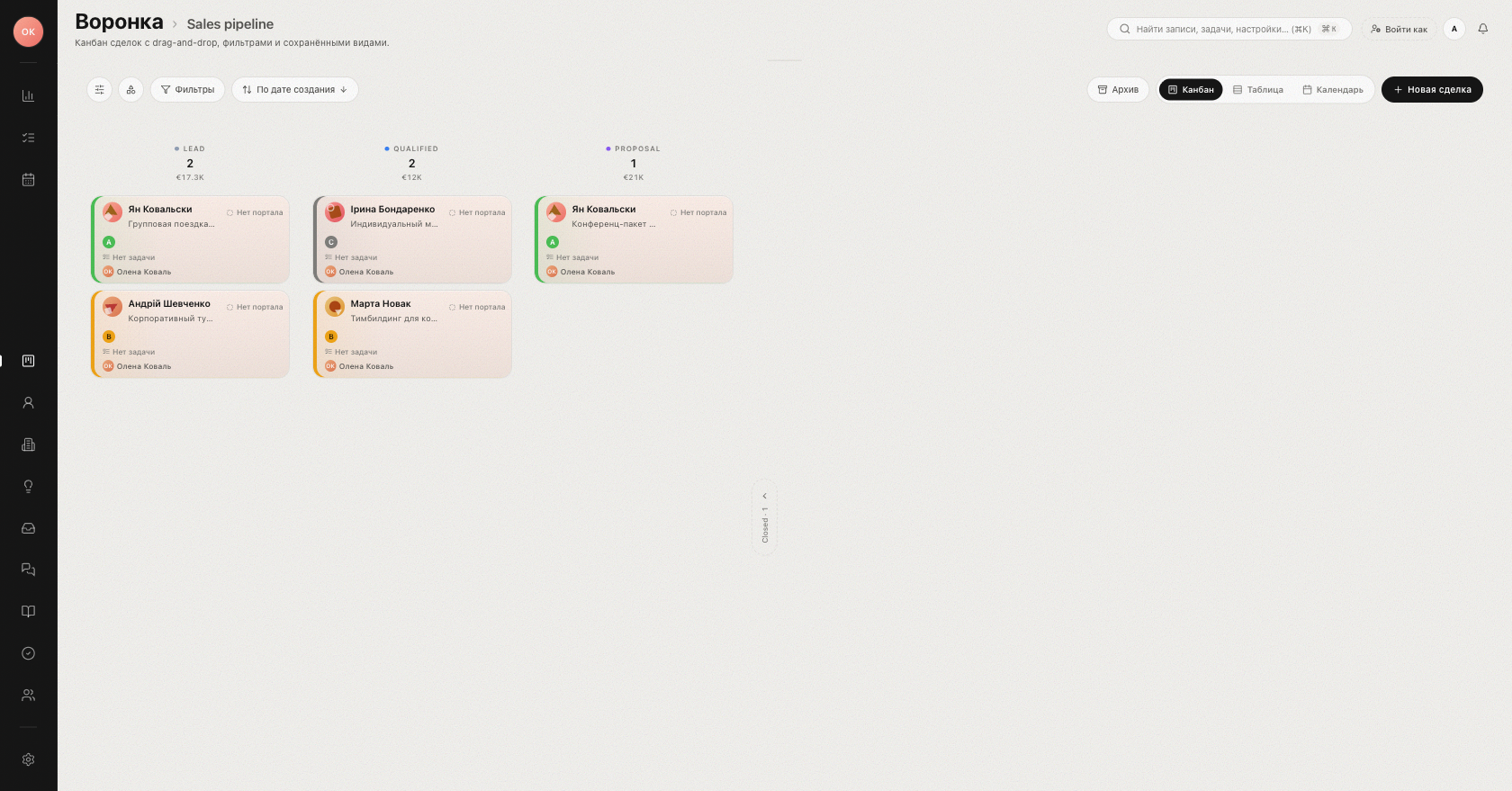
The board header
- Switch pipeline — jump between the pipelines of your workspace.
- Filters — open the Search and filters drawer: text search, stages, managers, and more (see below).
- New deal — quick-create a deal: Name, Pipeline and Stage, Close date, Next touch, Client name with Email / Phone, Owner, Source.
- View switcher — Kanban, Table, Calendar, and Forecast show the same deals in different layouts.
Moving cards between stages
Drag a card into another column to change its stage. After the move a toast confirms it — for example, "Moved 1 deal to “Offer sent”" — with an Undo button that reverts the move. If any stage automations fired, the toast also reports how many ("2 automations triggered").
You can select several cards and move them together: Cmd/Ctrl-click adds a card to the selection, Shift-click extends it to a range. The selection toolbar offers Move to and Clear selection (Esc also clears). Checkboxes and the full bulk-action bar are available in the Table view. Some moves may require an approval — the board will tell you: "Approval requested".
Moving a card by hand is treated as your explicit decision: manual moves do not re-run automatic lead distribution, so the deal stays with the owner you gave it.
Opening a deal
Click a card to open the full deal page with the timeline, sidebar fields, and tasks — see The deal card.
Filters and views
The Search and filters drawer lets you combine:
- Active stages, date created / date updated;
- Source, managers (including Unassigned);
- Budget (EUR) from/to, tags, custom fields.
Press Apply to filter the board, Reset to clear. Save as view stores the current filter set — it appears in the views list next to built-in views such as No plan, Planned, High budget, Updated today, and Created last 30d.
Tidying the board
- Hide closed stages collapses won/lost columns; Show closed stages brings them back.
- Configure card adjusts what deal cards display: density, visible blocks, and the task chip label (title, task type, or due date only).
Tip: the No plan view collects deals without a next activity, an open task, or an upcoming meeting — drain it daily so nothing silently stalls.
Related: Pipelines and stages, Lead distribution.
Was this article helpful?